
Follow the steps below to add or edit a Talent Profile.
On the System Admin Console, go to Talent > Administer Structures.
The following screen will appear:
To add a new profile structure, click the Add button. A standard profile with pre-set sections and fields that you can customize will be created.
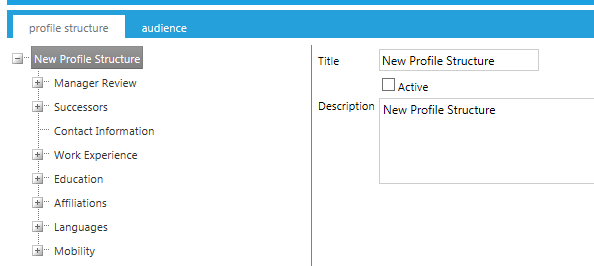
Enter a Title, Description, and click the Active check box if you wish to activate this profile.
Each user should only be in the audience for one active profile.
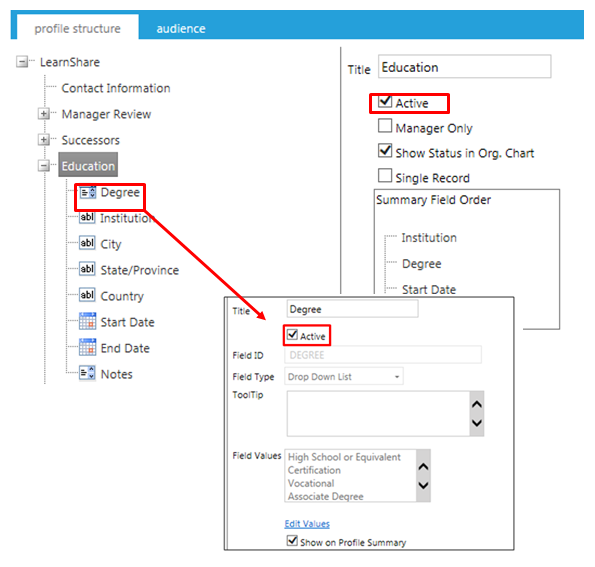
Review and expand the pre-set selections. To include a pre-set selection, both the top level section header and the specific field must be active. To hide certain sections/ fields, uncheck the Active box.
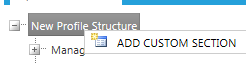
To add a new custom section, right-click on the top level folder and click Add Custom Section.
The following screen will appear with your new section at the bottom of the structure.
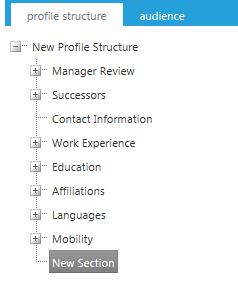
Click on the New Section to open up the fields.
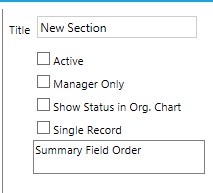
The Title is the Section name that will be visible to end-users.
Check the Active box to make the section active.
Manager Only makes this section only visible to the user’s manager.
Show Status in Org Chart makes this section appear in the Organizational Hierarchy Chart view.
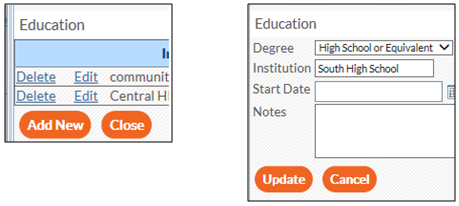
Single Record allows one entry per field.
The picture on the left is an example of the Single Record box being unchecked. There are multiple entries for the same text field and new ones can be added.
The picture on the right has been limited to a Single Record. The Institution text field can be changed/updated, but an additional entry cannot be made.
New Fields can be added to existing sections or to a new section.
To add a new field, right-click on the section to add a new field.

Click on Add Field. The following screen will appear:
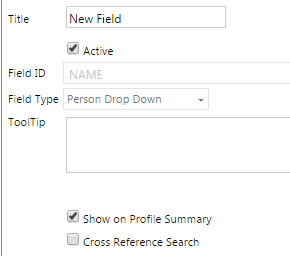
Enter information into the following fields.
| Field Options | Description |
| Title | This is the title for this field that the user will see on the profile. |
| Active | Check this box to make this field active/visible. |
| Field ID | You must enter a unique identifier for this field. |
| Field Type | Select the appropriate field type. See the next section for detailed information on each field type. |
| Tooltip | Enter a tooltip for this field if desired. |
| Show on Profile Summary | Check this box to allow the field to be shown on the user's profile overview. Unchecked fields will not show on the overview, but will appear when the user clicks to enter data in that section. |
| Cross Reference Search | When this box is checked, users will have the ability to search other users’ profiles for matching values in the selected field. |
The Field Types drop-down list will display the following options:
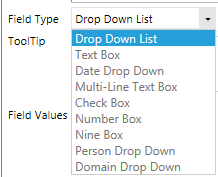
Each field type has its own criteria which may change the screen slightly when selected so you can input additional data:
 Drop Down List:
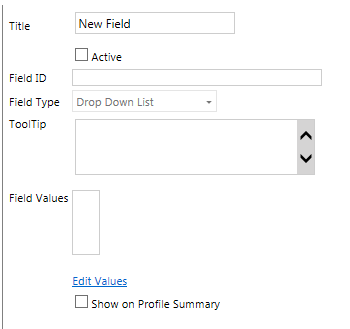
Click Edit Values to add the values you want users to choose from when they click the down arrow on their screen. A pop-up screen will appear:
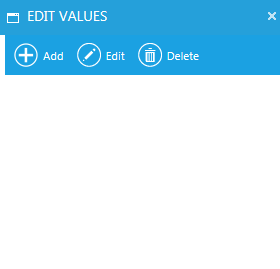
Click Add and enter an alpha and/or numeric value in the text box. Then, click Update.
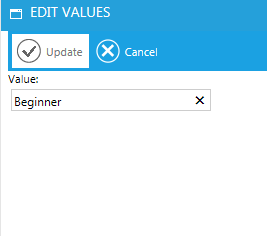
Continue to add and update until all values have been entered.
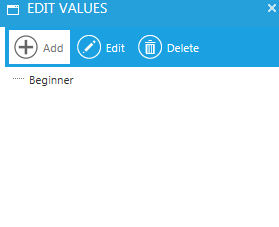
You can drag and drop the values to place them in a different order, if desired.
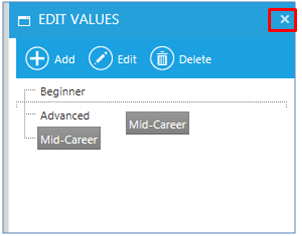
When you have added all of the values, click the x to close the box.
 Text Box (Default): inserts a one-line text box.
 Date Drop-Down: inserts a date field with a calendar icon.
 Multi-Line Text Box: inserts a scrollable, multi-line text box.
 Check Box
 Number Box
 Nine Box: Click the Edit Values link and follow the same instructions as those listed under the drop-down box.
 Person Drop-Down: Inserts a field that allows the user to select a person. Person must have an active LMS account to be shown in the drop-down.
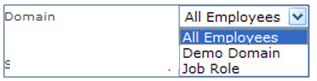
 Domain Drop-Down: Click the drop-down list that will appear in order to choose a domain.
To add another field, right-click on the Section Name again.
Once you have entered fields into a section, the Summary Field Order will appear on the section's edit screen:
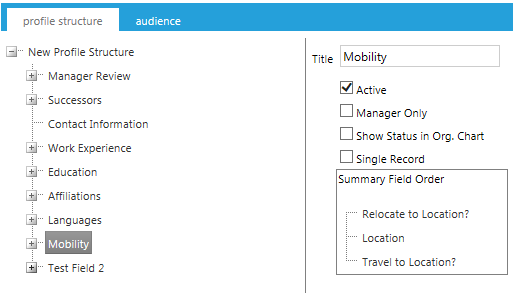
To change the order, you can click and drag any field in the list to a new position.
You can right-click on a field and choose a sort option.

Choose Sort Ascending to sort the list alphabetically. Choose Sort Descending to sort the list in reverse alphabetic order. The type of sort you selected will display:

Remove Sort will delete the sort designation.

Click the Save button.
Click the Audience tab to map this profile to a specific group of people.
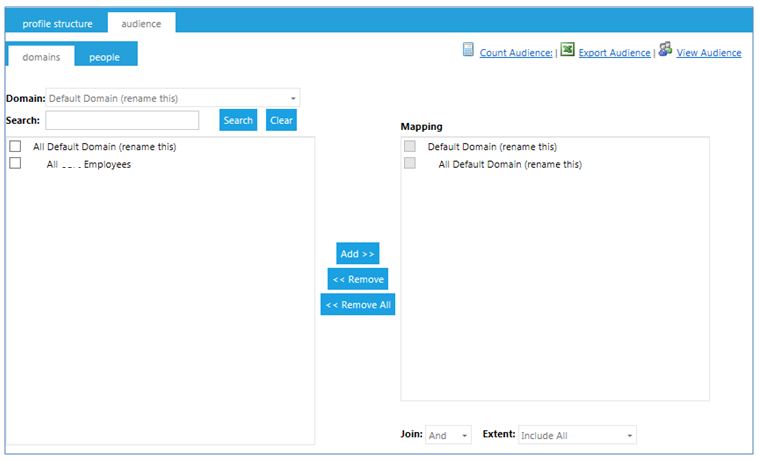
If you choose not to map to an audience, the system will default to all employees in the system.
Each user should only be in the audience for one active profile.
Click the Save button.
From the Manager's View screen, scroll down to find the employee whose talent profile you wish to view.

You may need to use the horizontal scroll bar to find the column you need.
Under the Talent Profile column, click the View link.

Managers will see Manager Only sections that a regular employee will not see. In the above example, they can view the Manager Review and Successors sections. Manager Only sections are fully customizable from the Admin screens.
Click the Edit link in the Manager Review section.

Use the drop-down boxes to select various review criteria for this employee.
Enter or use the calendar icon  to enter the last time this employee was reviewed.
Use the nine-box rating, which is also customizable from the Admin screens, to rate this employee on a scale from 1 (best) to 9. You may roll your mouse pointer over each rating for a definition or explanation of each rank.
Click the Update button. The data you entered will appear in the Manager Review section.

Click the Edit link in the Successors section.

Begin typing a person's name in the Name text box, and the system will populate a list from which you can choose.

Click on the name that is needed.
Alternatively, click on the Name down arrow to populate a list of all employees from which you can choose.
Fill in the rest of the text fields (optional), and click the Add button.
The pop-up screen will show a record summary, with an option to edit or delete it.

Click the Add New button to add another record, or Close if you are finished.
Click on the Save button.
Use the vertical scroll bar or the section links at the top of the page to jump to various sections of the employee profile.
Click the Edit link in any section to make changes.
Click the Save button.
After you have saved the changes, click on the Approve button at the top of the screen.
Last Reviewed in the upper right corner of the screen will show a date, time, and by-whom stamp that the employee will see when he or she logs into their talent profile screen.
